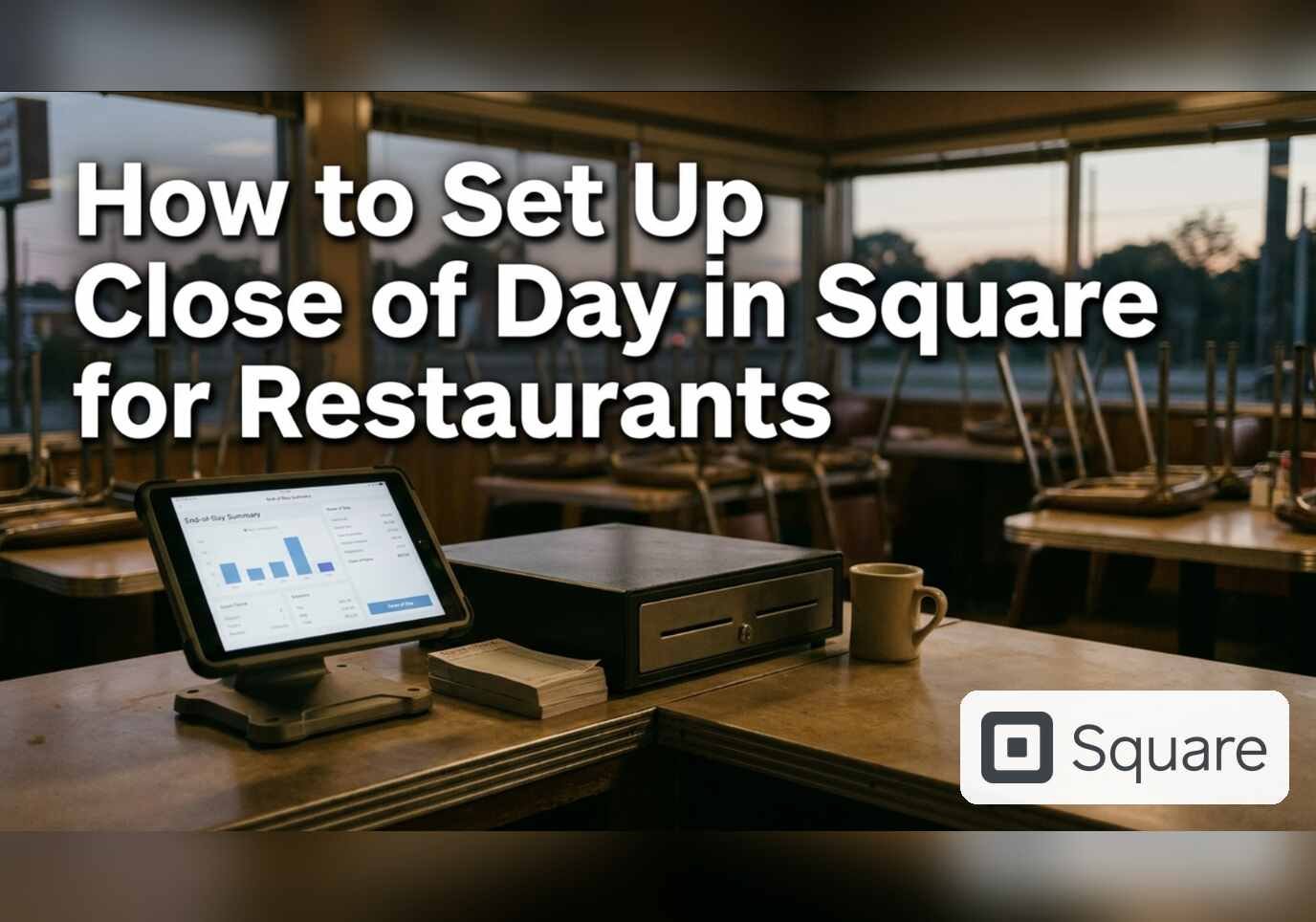
Close of day in Square for Restaurants is a report that audits the day’s sales and each team member’s tip payouts. A few Dashboard settings decide what has to be finished before the report can run. The steps below set them up.
Step 1: Open Closing procedures
In the sidebar, open Settings, then Restaurant settings, then Service settings, then Closing procedures. Pick the location at the top of the page.

Step 2: Set the actions required before close of day
The Close of day settings section lets the manager customize the actions required before the close of day runs. Four toggles are there: Close all open checks, Adjust all credit card tips, End all cash drawers, and Clock out all team members. In the screenshot the first three are on and Clock out all team members is off. Below them, Print on report chooses which fields appear in printed and emailed close of day reports. Square states that a basic sales summary always appears.

Step 3: Set the shift report rules
Scroll down to the team member shift report settings. Team members must close all checks, and team members must adjust all credit card tips, are two toggles that block a team member from clocking out until the work is done. A third toggle displays Cash owed to employee and Cash owed to house in the shift report, and Square says it does not affect payroll calculations in Square Payroll. Print on report adds category sales, individual item sales and a discounts section, and an Auto-gratuity payout choice sets whether auto-gratuity is paid out as cash tips.

Step 4: Choose the reopen method
Open Reopen checks from the same Service settings list. Two options set what happens to the payment when a closed check is reopened: Reopen and keep payment method, or Reopen and remove payment method. The second option requires a refund. Square adds that preserving the authorization of a payment method delays when the final bill amount is settled and affects reporting and item sales.

Step 5: Decide on bar tab pre-authorization
Open Bar tabs pre-auth. Square says it temporarily pre-authorizes a card for a set amount to help confirm the card is valid and able to pay the bill, and that it guarantees final payment only up to the amount authorized. Click Enable bar tabs pre-auth to turn it on for the location.

Related guides
For the daily routine in general, see POS Daily Close-Out and Reconciliation.
Referral: The Heritage Diner runs its register, loyalty program and payroll on Square. A business that signs up through this Square referral link and takes its first payment earns a reward for both sides. Disclosure: Peter Kalafatis has a financial interest in Square referrals.
Sources
Screenshots were taken from a Square Dashboard on November 8, 2026.