A guest realizes the tip was wrong, or an item was missed after the check closed. Square for Restaurants can reopen the check, but how it handles the original payment depends on a Dashboard setting. The feature works from the iOS or Android POS apps, and only before the check settles, meaning before the close of day report or automatic settlement.
Step 1: Open Reopen checks
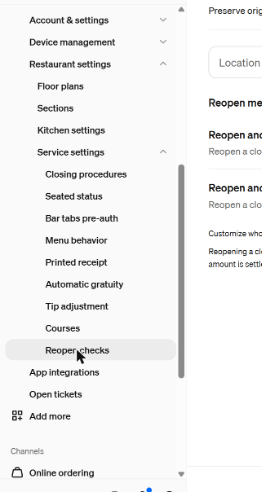
In the Dashboard sidebar, open Settings, then Restaurant settings, then Service settings, then Reopen checks. It is the last entry in the Service settings list.
Step 2: Choose the reopen method
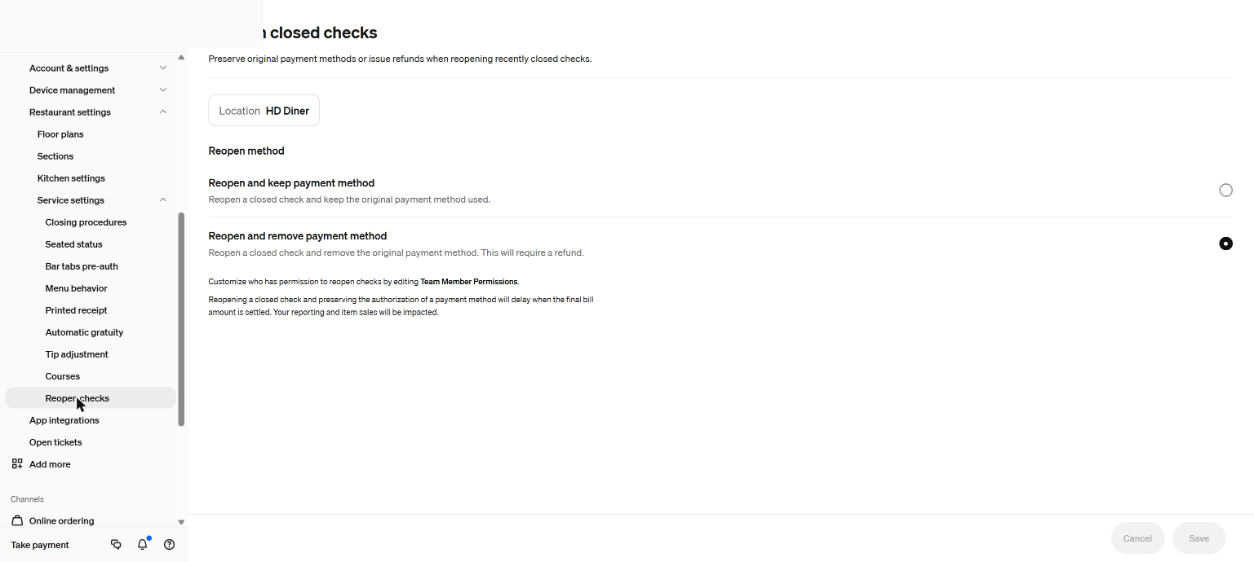
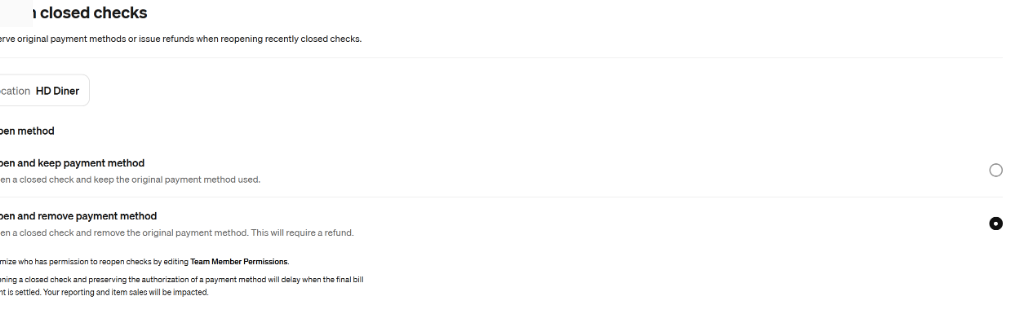
The page, titled Reopen closed checks, preserves original payment methods or issues refunds when recently closed checks are reopened. Two methods are offered. Reopen and keep payment method reopens the check so it can be closed again with the original payment, and a different card can be swapped in. Reopen and remove payment method removes the original card and refunds the original payment, and the check has to be paid again. The page adds that team members need permission to reopen checks, edited under Team Member Permissions.
Step 3: Reopen from the POS app
Square’s help page gives the POS route: Orders, select the check, the three-dot menu, Reopen check, confirm. After that, items can be added or comped and tips adjusted. The account owner can do this, as can a team member with both the account and settings permission and the checkout permission.
Settlement timing
With keep payment method on, checks can settle automatically. The setting sits under Settings, Account & Settings, Payments, Check settlement, with three timing choices: end of the reporting day, end of the working day, or 36 hours after the check opened.
Referral: The Heritage Diner runs its register, loyalty program and payroll on Square. A business that signs up through this Square referral link and takes its first payment earns a reward for both sides. Disclosure: Peter Kalafatis has a financial interest in Square referrals.