
A restaurant receipt can run long fast: every burger with four modifiers prints as five lines. Square for Restaurants has a setting that decides whether identical items are collapsed or every item and modifier is listed. It applies when a compatible receipt printer is connected.
Step 1: Open Printed receipt
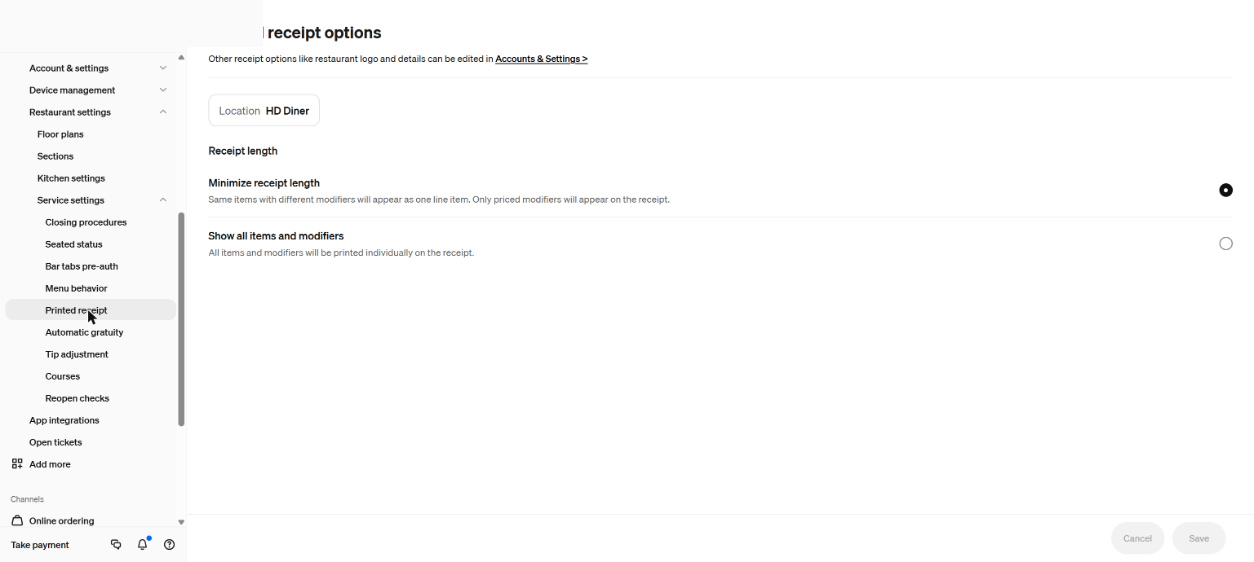
In the Dashboard sidebar, open Settings, then Restaurant settings, then Service settings, then Printed receipt. Square’s help page for restaurant setup places the Printed Receipts option under Service settings in device management, and says it covers consolidating or listing items and modifiers.

Step 2: Pick the receipt length
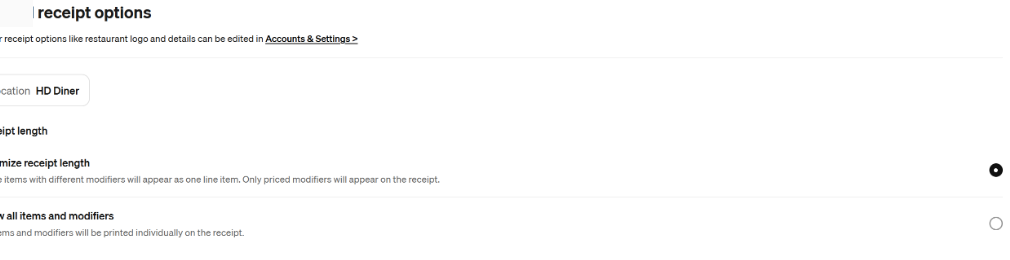
The page is titled Printed receipt options and starts with a location. Under Receipt length there are two choices. Minimize receipt length puts items with different modifiers on one line, and only priced modifiers appear on the receipt. Show all items and modifiers prints every item and every modifier on its own line. The Dashboard marks the active choice with a filled circle.
Step 3: Save, then check logo and details elsewhere
Saving applies the choice to that location’s printed receipts. A note at the top of the page points to Accounts & Settings for other receipt options. Square’s receipts page puts contact info, return policy and custom text under Settings, Account & Settings, Payments, Receipts, and the logo under My business, About. A printed-receipt logo should be at least 400 by 200 pixels as a JPG or PNG.
Font size is separate
Receipt font size is not set here. Square’s printer profile page puts Small, Medium and Large on each printer station on the device under Settings, Hardware, Printers.
Referral: The Heritage Diner runs its register, loyalty program and payroll on Square. A business that signs up through this Square referral link and takes its first payment earns a reward for both sides. Disclosure: Peter Kalafatis has a financial interest in Square referrals.