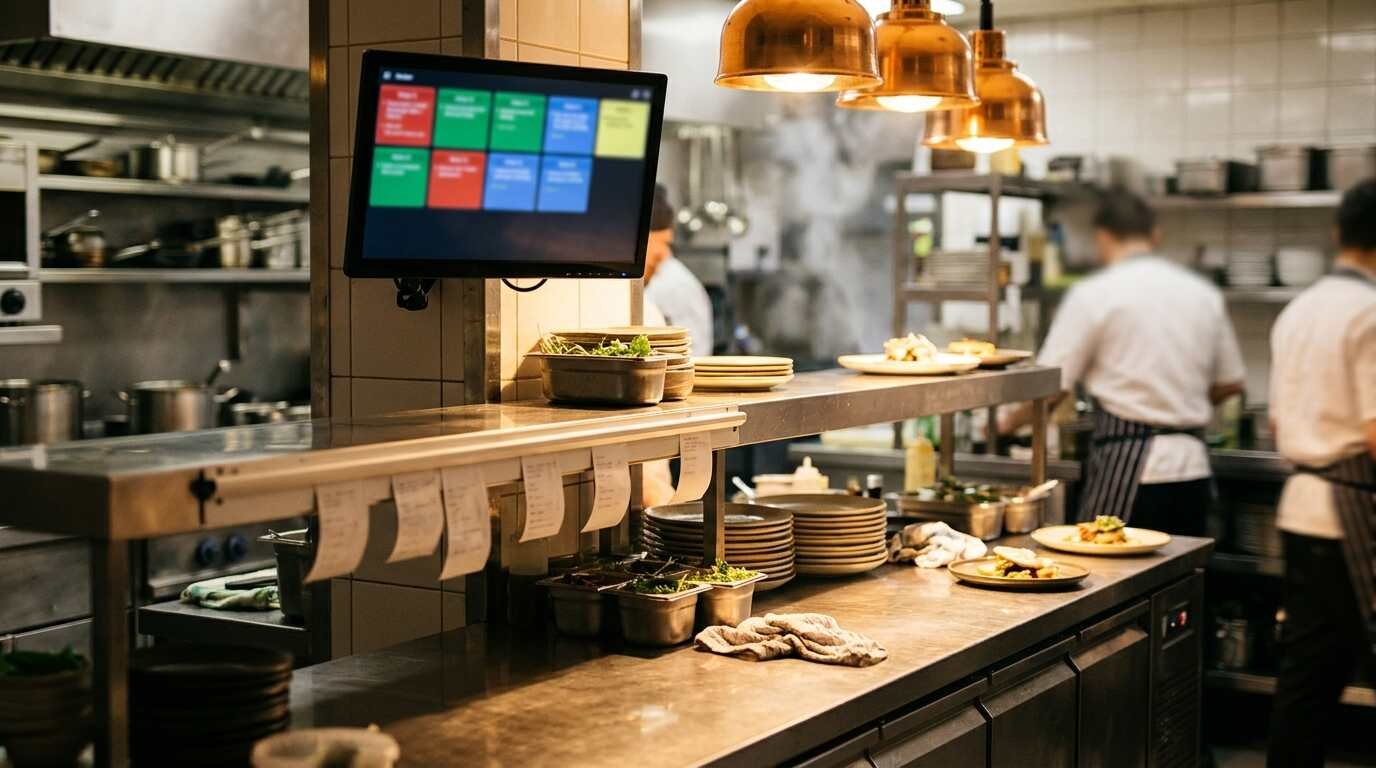
A kitchen display system, or KDS, replaces the paper ticket that a thermal printer pushes out above the line with a screen that shows the same order. Toast’s platform guide puts the idea in one sentence: the system replaces printed tickets with screens that route and display orders. The question for a small restaurant is less about whether screens work and more about what has to be true in the kitchen, on the network and in the budget before they work better than paper.
How an order reaches each station
The printer path
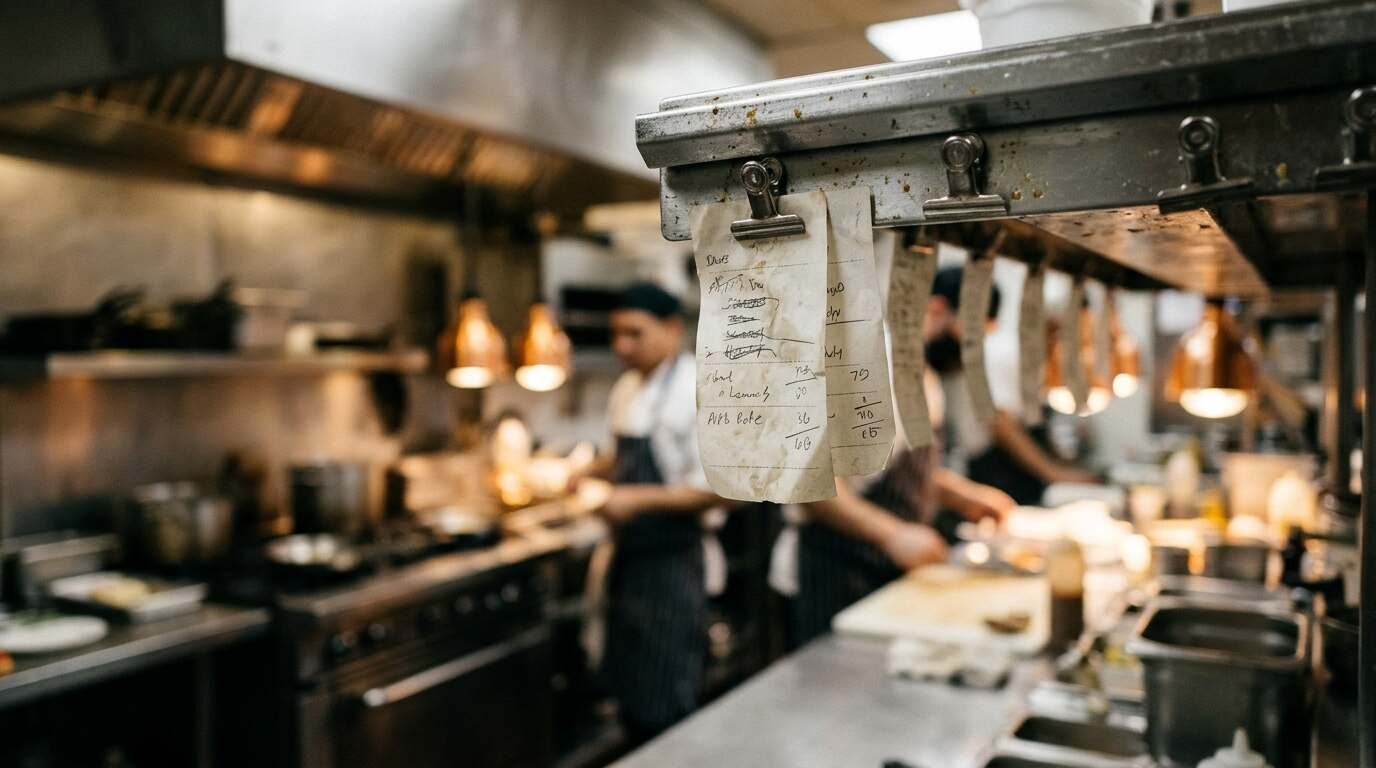
With a printer, the order fires from the register and each assigned printer spits out a slip. Cooks read the slip, cook the dish and pin or stack the paper where the pass can see it. The slip is the record: when it leaves the rail, the work is done, and the only status information is where the paper sits.
The screen path
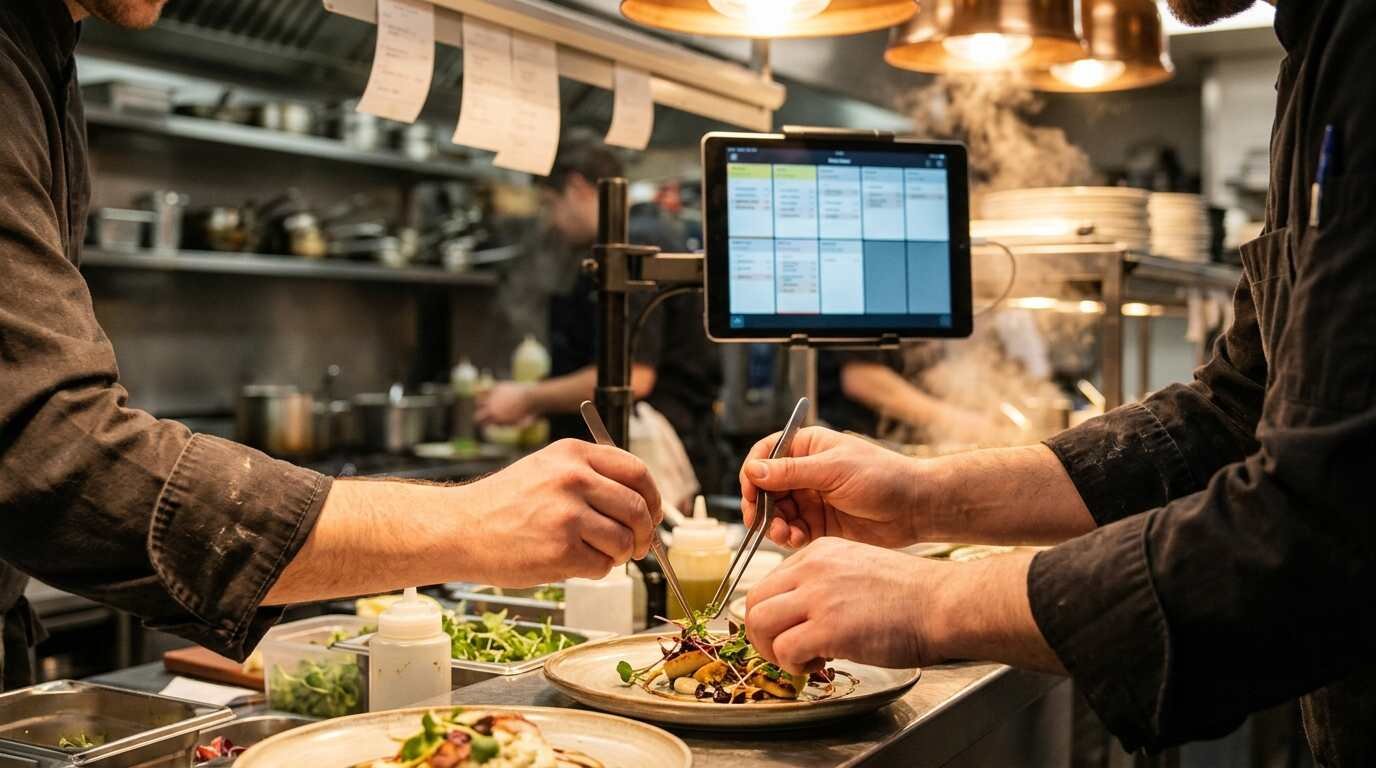
A kitchen display holds the same order as a ticket on a screen. In Toast’s description, tickets start at the top left and flow down and to the right, the ticket size adjusts to the number of items, and a swipe reaches tickets that are off-screen. When all items on a ticket are marked fulfilled, the ticket disappears. Payment status, PAID or NOT PAID, also appears on the ticket.
Square’s routing guide describes two order sources that are switched on separately: point-of-sale orders and online, kiosk and delayed-fulfillment orders. The dashboard setting picks which POS devices feed which display, so a grill screen can receive only the orders from the front counter while a separate screen takes online orders. Square’s own wording is that routing orders from different sources increases efficiency by showing each kitchen station the relevant information.
What a screen adds that paper cannot
Changes in real time
The sharpest difference sits in mid-order changes. A printed ticket is final the moment it prints, so a change needs a second slip or a shout. Toast says changes made at the front of house appear on kitchen display devices in real time. Alerts include sounds for new, changed, voided and ready tickets, plus a flash animation for new or changed tickets.
Timers and the expediter
Toast’s new KDS view shows average fulfillment timers at the bottom right and above tickets. Its expediter screen sits, in the guide’s words, between the front of house and back of house, and it tells the front when an order is ready. Setups can use expediters only, prep stations only or both, and two-level fulfillment requires a ticket to pass the first expediter before the second.
Square’s kitchen display page lists an expeditor mode for overseeing fulfillment and completion from one place, ticket layouts, timers and notifications that can be customized, and reports on prep times. A printer cannot report how long a ticket sat on the rail.
For a kitchen with one cook and one fryer, none of that may matter. For a line of four stations that all feed one pass, the expediter view stands in for the person who would otherwise call out what is still missing.
What a screen requires before it works
Subscriptions and per-device fees
A kitchen display is software on a subscription, not a one-time purchase. Square’s routing guide says Square KDS is available to sellers on a Square Plus or Premium subscription for an additional monthly fee per device, and it is not available on the Free plan. The kitchen display page lists the fee as $20 per device per month on Premium and $30 on Plus, as listed on the page fetched.
The arithmetic follows from those figures. Three screens on Premium come to $60 a month, or $720 over twelve months, before any hardware or the base subscription. A single printed-ticket setup carries no equivalent monthly line, though it does carry paper and printer replacement. Toast’s KDS FAQ says access requires a Kitchen Display Screen Software subscription, and pricing questions go to Toast’s sales line.
Hardware and platform limits
The routing guide states that Square KDS is only available on Android tablets, and the display page says the app comes from the Google Play Store and that Square sells an Android kitchen touchscreen. A restaurant that runs its front counter on iPads therefore needs Android hardware in the kitchen as well.
Toast’s guide notes that its new KDS view works only with local data synchronization, which supports offline mode, and that the local hub device must stay connected to the router for offline mode. The new KDS view is not compatible with the ToastGo1 or ToastGo2 portable devices. A cart-and-handheld service model needs a plan for the kitchen end.
Clover also sells a kitchen display, but the Clover product page fetched for this article did not load any KDS details, so no Clover specifications appear here.
Reading a screen in a working kitchen
Screen layout is a setup decision, not a given. Toast’s guide says the new KDS view offers a Grid layout with a fixed number of rows and columns, marks tickets CONTINUED when they span columns or pages, and lets the restaurant control text size and a light or dark theme in the appearance pane. The available row and column counts depend on screen size and orientation. A line cook reading from six feet away under bright hood lights needs larger type than a manager checking a tablet at a desk, and a ticket that spills onto a second page invites a missed item.
The same guide describes two-level fulfillment, where an item is checked at a prep station and again at the expediter. On the expediter screen, a single check mark shows an item fulfilled at a previous level and a double check mark shows one fulfilled at the current level. A paper rail has no equivalent: a ticket is either on it or gone.
Where paper still earns its place
Offline and failure modes
Screens lean on the network. Toast’s FAQ describes an orange banner on a device that loses its connection and an Offline Mode banner on the passcode page, and it gives a setting that prints expediter tickets only when Toast is in offline mode. That arrangement keeps a printer plugged in as insurance and uses it only when the screen path fails.
Square’s display page does not say whether the KDS works offline, so a restaurant considering it should ask before dropping its printer.
Hybrid layouts
Toast’s platform guide includes a workflow with a single expediter KDS and prep station printers. Each item creates a ticket on the expediter screen and also prints at its prep station. Line cooks cook from the paper, the expediter fulfills each item on the screen, and the food runner uses the printed ticket to deliver each item to its seat.
In that arrangement the screen tracks progress and the paper rides with the plate. It solves a table-service problem, seat identification, that a screen alone does not.
The guide adds a warning: prep stations that do not send tickets to the expediter need a printer that always prints, since items sent to a station with no assigned printer do not show up on paper or on the expediter screen.

Choosing by kitchen size and service style
A single line, short menu
One prep area where everyone sees the same rail rarely needs routing. A printer, a rail and a loud expediter handle it, and the monthly fee buys little. The case for a screen is thinner here.
Multiple stations or heavy online volume
A second station, a separate bar or a stream of delivery-app and online orders changes the picture. Online orders can be given their own display, as Square’s routing guide describes, instead of sharing a printer with counter orders. Timers and an expediter view also show a backed-up station before a table complains.
Staff and habits
Screens change habits as much as equipment. Cooks who read a slip and spike it need to learn to tap a ticket complete, and an expediter who has relied on shouting learns to trust a timer. Cooks who already cover each other’s stations, a practice covered in cross-training restaurant staff, have fewer handoffs to relearn. Written station procedures, described in writing a station procedure for a restaurant line, need a line added for who clears tickets and what happens when a screen goes dark.
Payment hardware is a separate decision, though it shares the same network. Setup and fees for the card side are covered in taking card payments with Square.
Mixed service
Many small restaurants run two kinds of service at once, a counter that moves fast and a dining room that moves slowly. The Square routing guide lets point-of-sale orders and online orders feed separate displays, and the Toast guide lets setups use expediters only, prep stations only or both. A counter-only kitchen might use one screen and a dining room kitchen three. Nothing in either vendor’s pages requires the same arrangement across a whole building.
A cautious way to switch
The documented behavior points toward a staged change. Run the screen alongside the printer for a stretch of services, with the printer set to print only when the system is offline where the platform allows it, as Toast does. Time a few busy services, compare the screen’s timers with the old rail habits, and decide on what the numbers show. The switch to screens fits when the monthly per-device cost is smaller than the cost of remade dishes and slow tables, and only the restaurant’s own tickets can show that.
For informational purposes only — consult a licensed attorney, tax professional or financial advisor.
Sources
- Toast, Kitchen display system overview: https://doc.toasttab.com/doc/platformguide/platformKDSOverview.html
- Toast, KDS workflow with a single expediter KDS device and prep station printers: https://doc.toasttab.com/doc/platformguide/platformKDSWorkflowWithSingleExpoAndPrepStationPrinters.html
- Toast, Kitchen Display System FAQ: https://support.toasttab.com/en/article/KDS-FAQ
- Square, Route orders to the kitchen with Square KDS: https://squareup.com/help/us/en/article/7959-route-orders-with-your-kds
- Square, Kitchen Display System: https://squareup.com/us/en/point-of-sale/restaurants/kitchen-display-system
- Merchant Maverick on YouTube, What Is A Kitchen Display System?: https://www.youtube.com/watch?v=cEA7TOeSJAo
All pages fetched at the time of writing.