
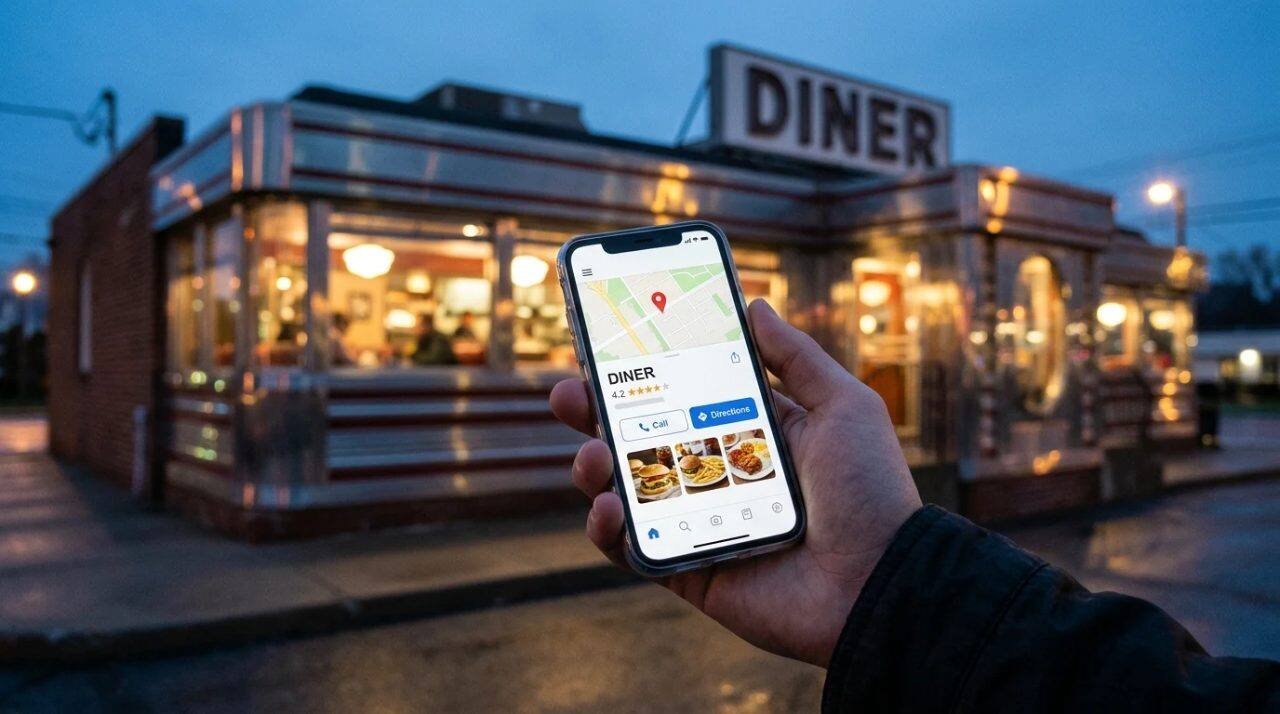
When someone searches for a restaurant on Google, the answer shows up before the restaurant’s own website does: a name, a star rating, a phone number, hours, photos, a menu. That panel is the Business Profile, and for a lot of customers it is the only page about your place they will read. Whatever it says, you said.
I help run the Heritage Diner in Mount Sinai, a family restaurant, and our profile carries photos, videos, daily specials, phone numbers, links and menu items. It has also carried wrong information. This checklist follows Google’s own help pages for restaurants, with the things I would check in order and the mistake that cost us phone calls.
Claim and verify the profile
Nothing else on the list matters until Google treats the profile as yours. You need a Google Account to set up a Business Profile, and then you verify. Google’s verification page lists the methods:
- Phone or text: Google calls or texts a code to your business number. An automated phone menu cannot receive it, so a person has to answer.
- Email: Google sends the steps to an email address you can open.
- Live video call: A Google representative walks you through it during your location’s business hours. You need a video-capable device and have to be at the business.
- Postcard: Google mails a five-digit code to your business address, usually within 14 days. The code expires after 30 days.
Google decides which of these you are offered, and the page says those methods can’t be changed. Two warnings apply to the postcard. Do not edit the business name, address or category after you request it, and do not request a second code. Google’s review of a verification request can take up to five business days, and the page notes that verification can be instant if you verify through Search Console or bulk verification.
Get the basics exactly right
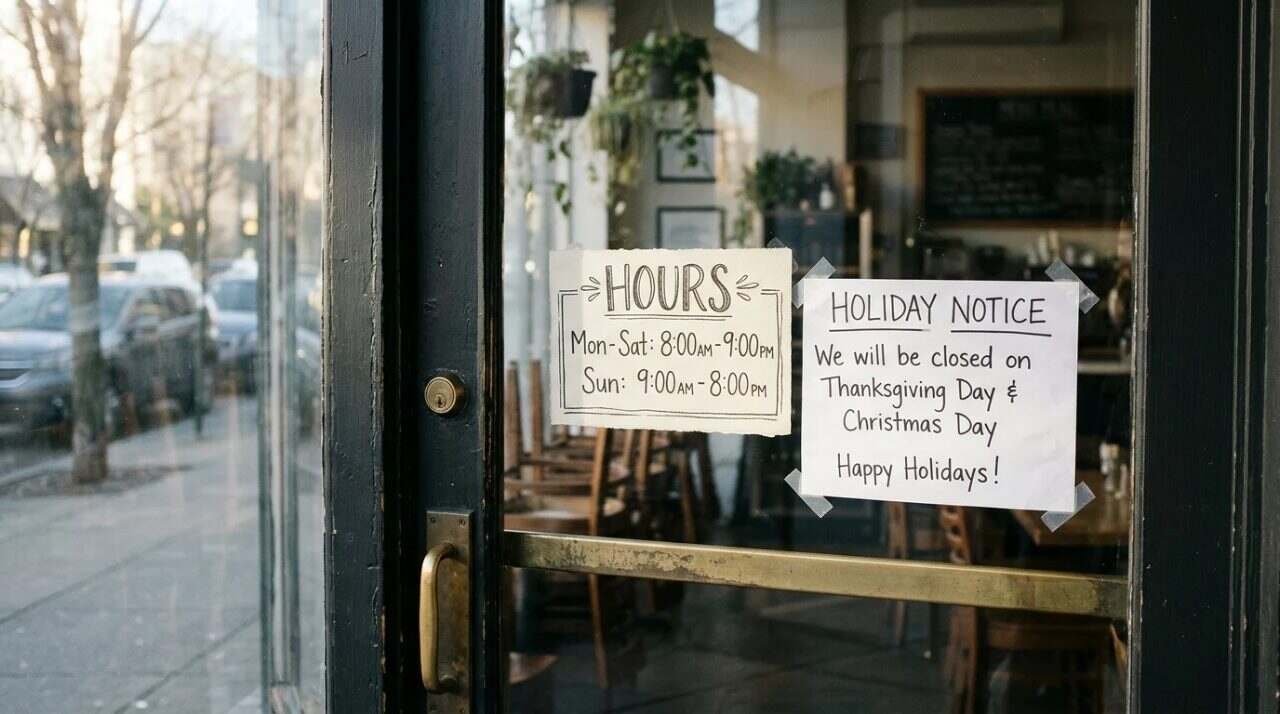
Google’s guide to getting started with a Business Profile for your restaurant puts the basics in its second step: the address, regular hours, and the phone number. Treat these as the part of the profile you cannot get wrong.
Hours are where restaurants slip. The guide covers regular hours and closures, extra hours for services such as delivery or takeout, and special hours for holidays. A restaurant open on Thanksgiving that shows the regular schedule loses customers to the place down the road, and a restaurant that is closed on a holiday and shows open sends people to a dark door.
Add photos and video
The same guide’s fourth step covers uploading photos and videos of the interior, the exterior and the dining experience, with its own guidelines and best practices. Our profile has images and video because a customer deciding between two diners will look at what the room and the plates look like.
Use real pictures of your own place. A stock photo promises something the customer will not find when they walk in.
Put the menu on the profile
This is the step that burned us, so it gets the longest section.
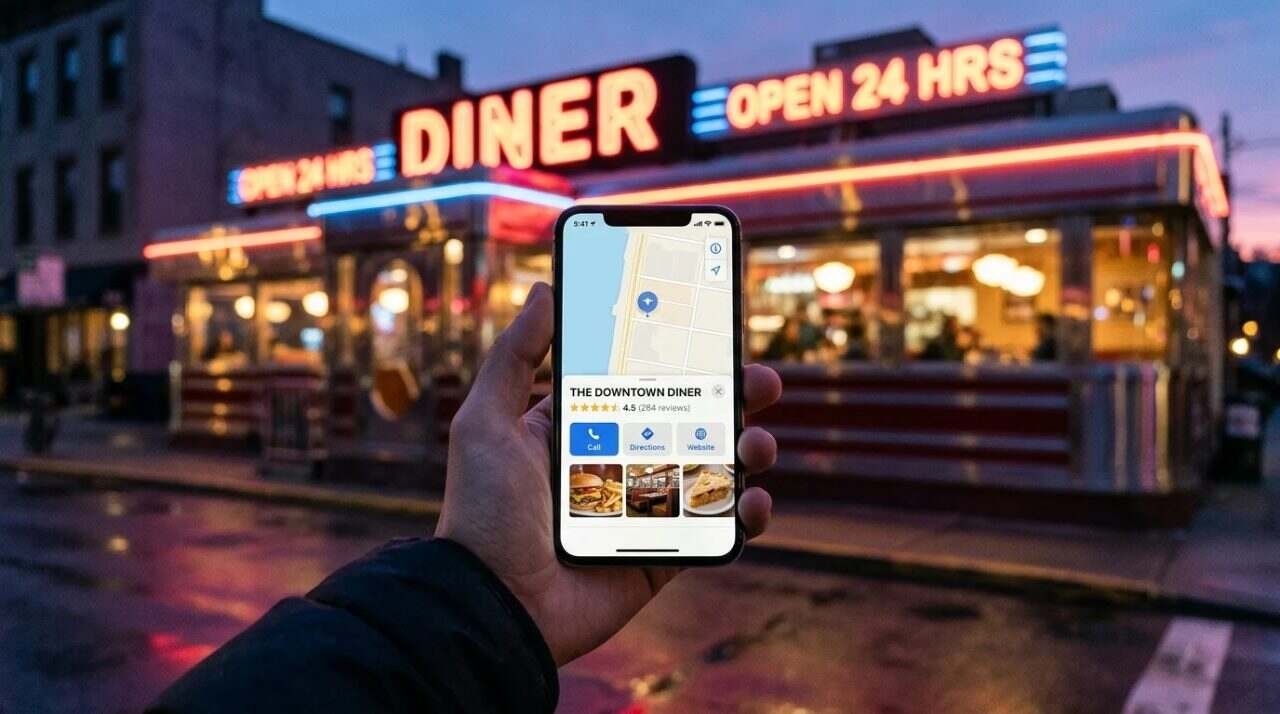
Google offers a menu editor for food and drink businesses. It lets you set a preferred menu or build a detailed one with sections, dishes, descriptions and prices. You can also add a menu URL or upload menu photos. A page on editing a Business Profile notes that the menu editor is limited to food and drink businesses and lists it as having limited availability.
A few years ago I entered our menu items and prices by hand. Then prices changed. I forgot to update the profile. People saw the old menu on Google, called to order from it, and we had to explain that the price or the item was no longer right. The fault was my workflow: the menu lived in several places, and I was the only link between them.
Connect ordering and reservations
Step three of Google’s guide covers online ordering and reservations. If customers can order from you through your own site or a partner, the profile can point them there. This is where a clean menu starts to pay, because a customer who orders from the link should see the same items and prices they saw on the profile.
Keep a single source for the menu
What fixed it for us was getting the menu out of my memory and into one place. Today everything is synced to one menu from our Square point-of-sale system: Google, our own website, DoorDash, Uber and the other places the menu appears. When an item or a price changes in one place, it changes everywhere the menu shows. I no longer update four listings and forget one.
That is the change I would make first if I were setting up a restaurant profile from nothing. Decide where the real menu lives, make it the only place anyone edits, and point everything else at it. The editing tools on each platform matter less than that one decision.
Links: website, menu and social
Google’s restaurant guide also covers the links a profile can carry. It mentions social media links and a menu URL, and lets a business with an ordering link choose a preferred provider. Every link on the profile is a door into something you maintain, so each one should lead somewhere current. A menu URL pointing to a PDF from three seasons ago does the same damage as an outdated menu on the profile itself.
Check each link by clicking it on a phone, since that is where most people will meet it. Then look at the phone number the same way: call it and see who answers. A number that rings in an empty office during dinner service sends a customer elsewhere.
Keeping the profile current
Most of the damage comes from drift, not from the setup. The hours change and the profile does not. The menu changes in the kitchen and not online. A second phone line gets added and the old one stays listed. Each of these is small on the day it happens and expensive over a year.
The remedy is a short weekly habit: open the profile on your phone the way a customer would, read the hours, tap the phone number, open the menu, and compare what you see to what is true that day. Five minutes a week finds the problem before a customer does.
Post updates and answer reviews
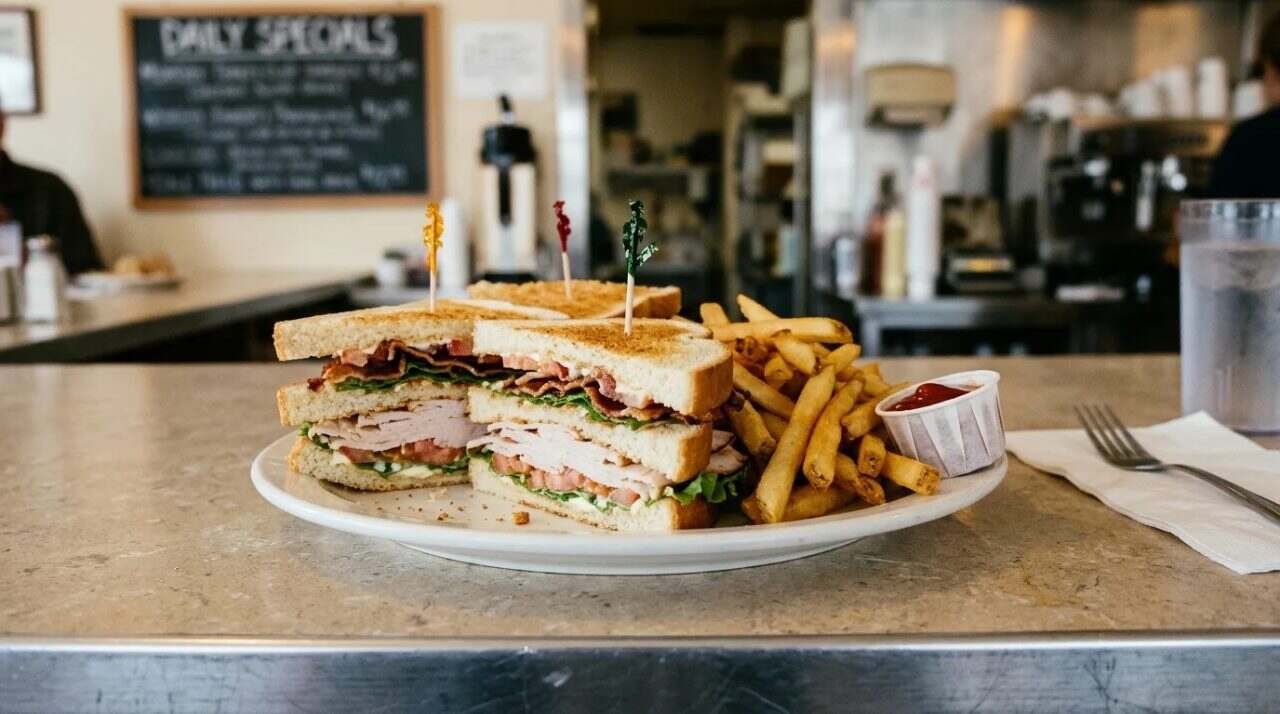
Step five of the Google guide covers engaging customers with posts and replies to reviews. For a restaurant, a post is where daily specials belong, along with a holiday schedule or a new item. Replying to reviews, good and bad, tells the next reader that someone is paying attention.
For the checklist, the item is simple: someone is responsible for looking at the reviews on a regular schedule.
Check how the profile performs
The last step in Google’s guide covers performance numbers such as searches, menu clicks and bookings. These tell you what customers do after they find you. A profile with lots of searches and few calls or direction requests is telling you something about the photos, the hours or the menu. Look at them the way you would look at a sales report, on a regular day each week or month.
Know how edits work
Once the profile is verified you can edit it through Google Search or the Google Maps app, signed in to the Google Account linked to it. Google’s editing page says changes are reviewed before they go live on the profile, and it does not give a specific time. The page links to a place where you can check the status of an edit. Make time-sensitive changes, such as a holiday closure, well ahead of the day.
The checklist in one place
- Claim the profile with a Google Account and pick the verification method Google offers.
- Enter the address, regular hours and phone number, and check them against the sign on your door.
- Set special hours for holidays and extra hours for delivery or takeout.
- Upload photos and video of your own place.
- Put the menu on the profile, preferably from one source that feeds every listing.
- Connect ordering and reservations if you offer them.
- Post specials and holiday updates, and reply to reviews on a schedule.
- Review the performance numbers on a regular day.
- Allow time for edits to be reviewed.
For informational purposes only. Google changes its tools and help pages, so confirm current steps on Google’s own pages.
Sources
- Google Business Profile Help, Get started with a Business Profile for your restaurant: https://support.google.com/business/answer/14189260
- Google Business Profile Help, Verify your business on Google: https://support.google.com/business/answer/7107242
- Google Business Profile Help, Edit your Business Profile: https://support.google.com/business/answer/3039617
- Howfinity on YouTube, Google Business Profile Tutorial – Get Listed on Google: https://www.youtube.com/watch?v=FH4k-YwnYrA